Trimming and chapters
Updated September 27, 2026
Trim
Open a video’s Trim tab. Use the player at the top of the page to find the moments, then set them:
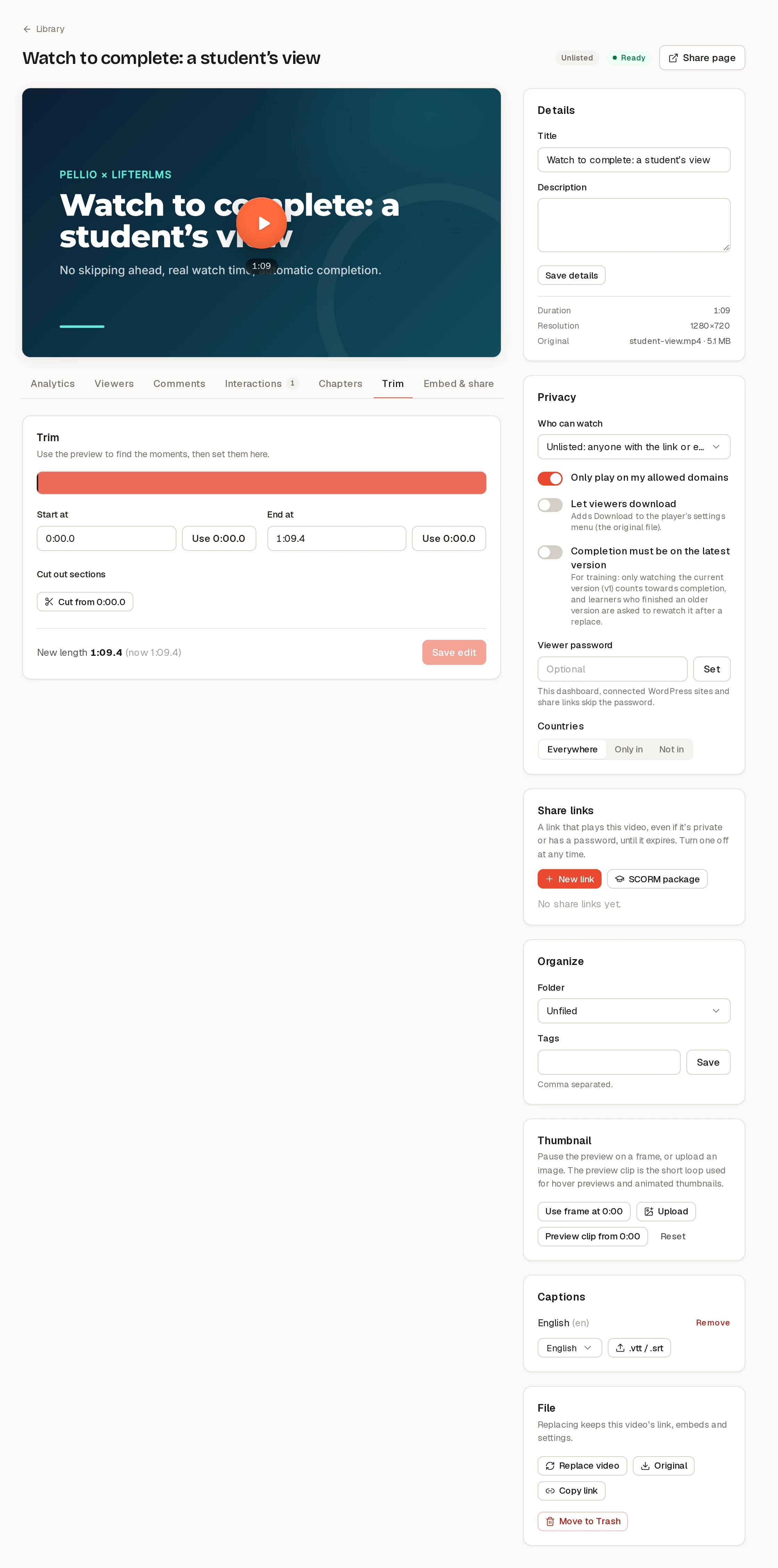
- Start at and End at cut the beginning and the end. Use m:ss fills in the player’s current time.
- Cut out sections removes parts from the middle: play to the start of the part, click Cut from m:ss, then set where it ends.
Click Save edit. Pellio makes a new version of the video; its link, embeds, settings and analytics stay the same. The original is kept: Restore original puts back the video as you last uploaded it, undoing every trim and cut.
Chapters
Chapters split a video into named sections. They show as gaps in the player’s progress bar and as a Chapters list in the player’s settings menu, and on the share page they help search engines link to a moment in the video.
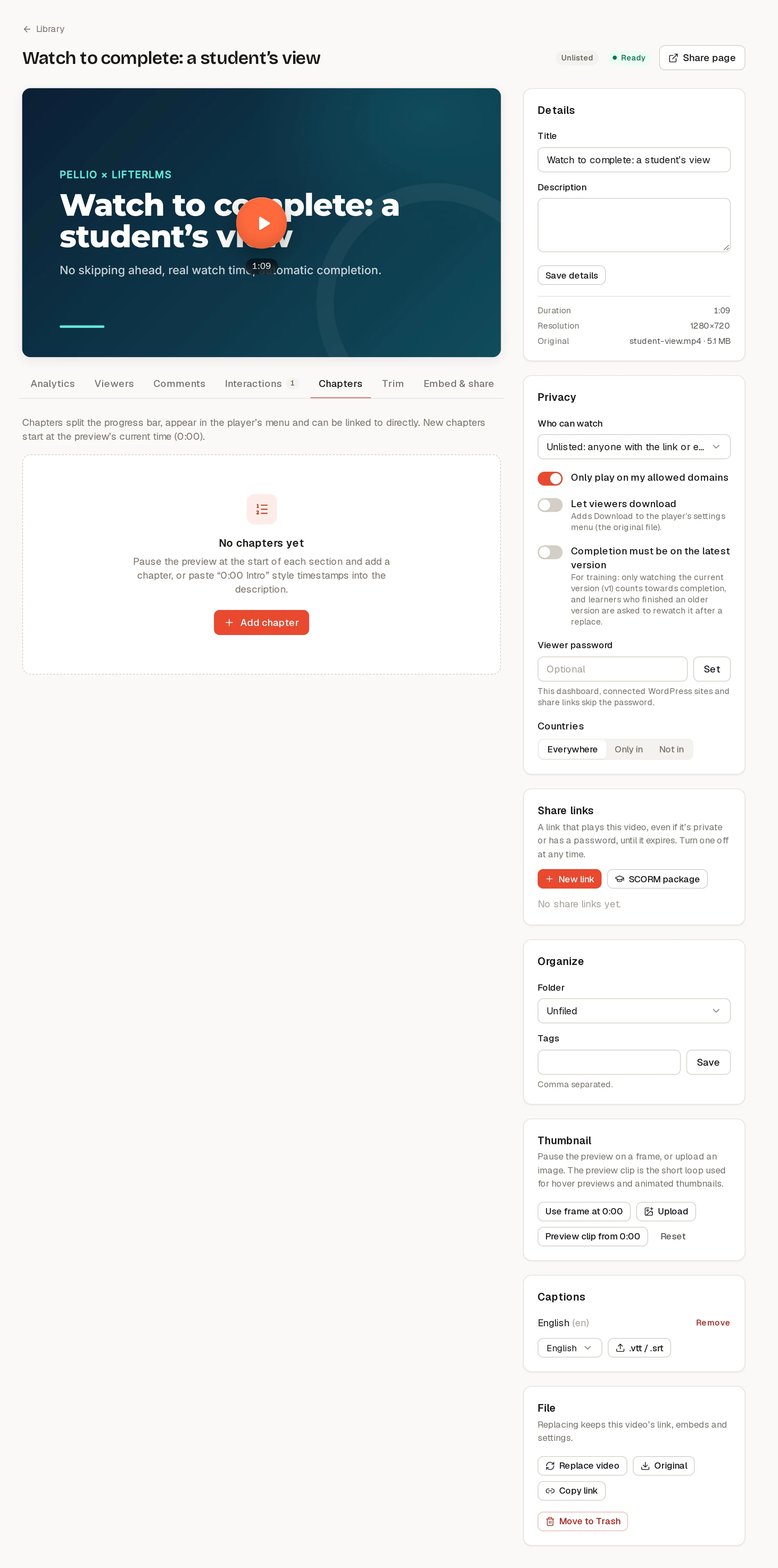
- Pause the player where a chapter starts and click Add chapter at m:ss, or Add chapter and type the time.
- If the description already has timestamps like
0:00 Intro, click Use N timestamps from the description. - Each chapter has a link button, Copy a link that starts here, for sharing that moment.
Click Save chapters when you’re done, or Discard to undo your changes.