Player presets and branding
Updated September 27, 2026
A player preset is a saved look for the player: colours, controls, logo and watermark, plus compliance rules for training. Create them in Settings → Player (owners and admins). The preview on the right shows the preset on one of your videos.
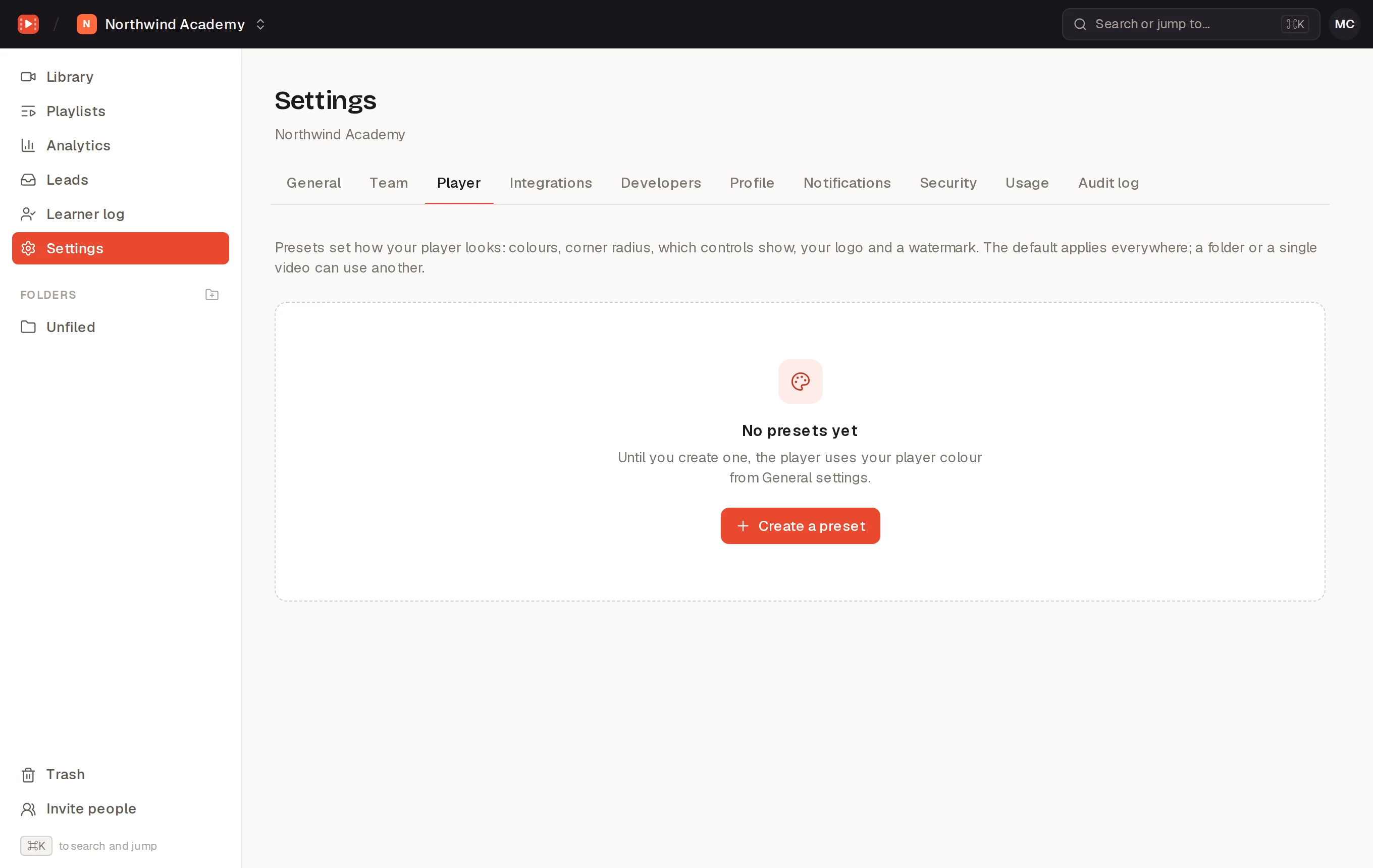
What a preset sets
- Name, Colour (the play button and progress bar) and optionally Gradient to a second colour.
- Corner radius (0–24 px) and the Play button size: Large or Small.
- Animated thumbnail: loops a few silent seconds of the video (its preview clip) until someone presses play.
- Controls: which buttons show: volume, time, captions, speed menu, quality menu, picture in picture and fullscreen.
- Logo: Upload an image, choose its Position and width (32–240 px), and optionally a Link (optional) to your site.
- Watermark: a faint line of text over the video, such as your company name, in the position you choose.
- Compliance training: no skipping ahead, a speed limit, pausing when the viewer leaves the tab, “Still watching?” checks and the viewer’s email over the video. See Compliance training.
Click Save preset. Make default uses it for every video that doesn’t have its own; the first preset you create becomes the default automatically. Delete removes it.
Using a preset for some videos
- A folder: the folder’s options (…) → Player preset…. Tick Also reset videos in this folder to make videos that had their own preset use the folder’s.
- A video: the Organize card → Player preset. Inherit uses the folder’s preset, or the default.
- One embed: add
preset=PRESET_IDto the player URL.
Player colour without presets
Settings → General → Player colour is used while you have no presets, and for playlists. Once you have a default preset, its colour is used instead.